
Description
Many users will find this macro super-helpful in their CorelDRAW work!
Here’s a video:
Product Instructions:
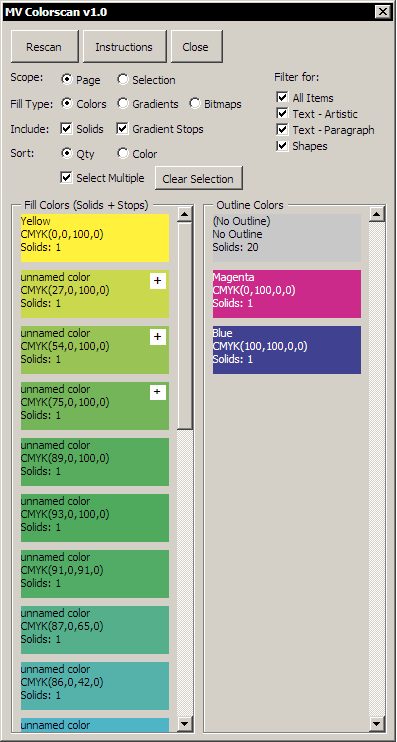
This tool scans the current Page or Selection and lists colors used in fills, outlines, gradients, or bitmaps depending on the mode.
Modes (radio buttons):
– Colors: Displays fill and outline colors. Use the Solids/Gradients toggles to include solid fills and/or gradient stops. Clicking a swatch selects all objects in scope that use that color. Apply New Color replaces that color across the selected objects.
– Gradients: Displays unique gradient definitions derived from start, end, and stop colors/positions. Clicking a gradient selects all matching objects. The Stops column lists each stop; clicking a stop opens the Fill editor.
– Bitmaps: Displays bitmap color modes (RGB, CMYK, Grayscale, Lab, etc.). Clicking a swatch selects all bitmaps of that mode.
Scope (radio buttons):
– Selection: scans only the current selection.
– Page: scans all objects on the current page.
Filters (checkboxes):
– All Items: toggles all filters on/off.
– Shapes: include non-text shapes.
– Artistic Text: include artistic text.
– Paragraph Text: include paragraph text.
Colors Mode Toggles (checkboxes):
– Solids: include solid fills in the Fill Colors list.
– Gradients: include gradient stop colors in the Fill Colors list.
Swatches:
– Fill Colors column: lists colors used in fills (solids and/or gradient stops depending on toggles).
– Outline Colors column: lists colors used in outlines for the same objects included by your fill toggles.
– Gradients column (Gradients mode): lists unique gradient definitions; click to select matching objects.
– Stops column (Gradients mode): lists each stop for the selected gradient; click a stop to open the Fill editor.
– Bitmap Type column (Bitmaps mode): lists bitmap color modes; click to select matching bitmaps.
Buttons:
– Apply New Color: in Colors mode, opens the color picker using the last clicked swatch color and replaces that color in the current scope.
– Scan: rescans the current scope and refreshes the swatch lists.
– Help: opens this instruction panel.
– Close: closes the tool.
Special Entries:
– (No Fill) and (No Outline) appear for objects without a fill or outline.
Notes:
– Scans do not change your artwork.
– Rescan after making changes to update the list.
Compatibility: CorelDRAW X7+ (Manually place this macro into your GMS folder)
July 7-2026 Update: Powerclips with colors assigned to the Powerclip Shape are now included in selections.


